PDF to OFX Converter
Choose a statement PDF and download an OFX file with stable transaction IDs and the closing balance. The file is read in this tab and never uploaded.
How to convert a PDF statement to OFX
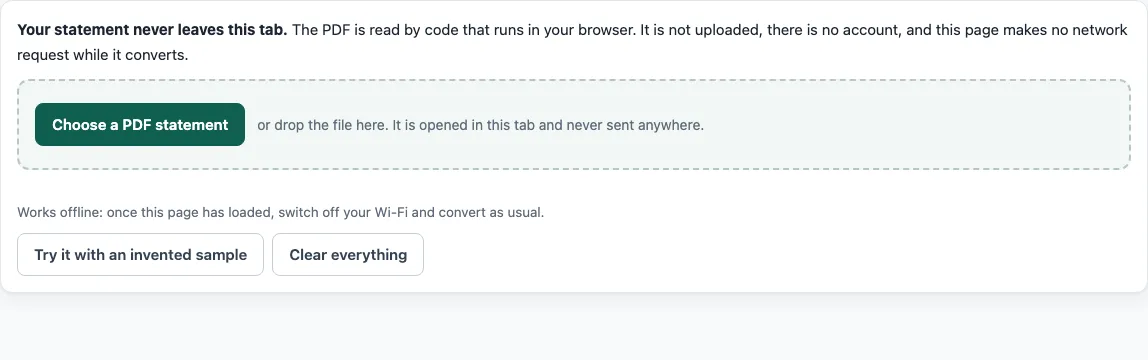
- Click “Choose a PDF statement” or drop the statement onto the page. To try the tool first, click “Try it with an invented sample”.
- If the PDF is password-protected, type the password when the page asks. The password is not sent anywhere.
- Open the “Options” panel and set the account type (bank account or credit card). Change the date order if the tool guessed it wrong.
- Read the balance check. A row that does not add up is marked with the printed balance, the total of the rows and the difference. If no table header was found or the columns are wrong, use “Mark the columns by hand” and let the tool read the statement again.
- If the tool did not find the opening or closing balance, type it in. OFX needs a closing balance and a full date on every row. The page says what is missing instead of guessing.
- Under “File options”, choose OFX 1.0.2 or 2.2, then enter an account ID label such as the last 4 digits. Change the three-letter currency code if the statement is not in US dollars (USD).
- Click “Download OFX”.
Before you import the file, compare the first and last rows with the statement and confirm the check says “Balances add up”. That result shows the numbers are consistent. It does not prove that every description and date was read correctly.
What is an OFX file?
An OFX file is a text file that programs use to import bank and card transactions. OFX stands for Open Financial Exchange. Each transaction in the file has a type (DEBIT, CREDIT, or CHECK), a posted date, an amount, a transaction ID, a name and, when the description is longer, a memo with the full text. A CHECK entry also carries a check number when the description starts with “check” and a number. The file ends with a ledger balance, which this tool sets to the closing balance. Both OFX versions carry the same transactions, so the choice changes the layout of the file, not the data in it.
Bank accounts are written as a bank statement message. Credit card statements are written as a credit card statement message, and the ledger balance is the amount owed, shown as a negative number. Set the account type before you download, because a card’s balance is written as the amount owed.
OFX 1.0.2 or 2.2: which should you pick?
Version 1.0.2 uses SGML, the older form that most programs have long read. Version 2.2 uses XML. The tool writes either one, so choose the version your import program asks for. The 1.0.2 header declares ASCII, so accented letters are written without accents: “Café” becomes “Cafe”. The description is still there, only the accent is lost.
What is the transaction ID (FITID) for?
OFX calls the transaction ID a FITID. The tool gives each transaction one that stays the same every time the same statement is converted, so converting it again does not produce new IDs. Rows that look identical, such as two payments of the same amount on the same day, still get different IDs. An import program uses the ID to tell a transaction it has already seen from a new one, which is why the ID must not change between conversions. If you convert a statement twice and import both files, the IDs in the two files will match for the same rows.
Frequently asked questions
Is the PDF to OFX converter free?
Yes. There is no account, and there is no page limit within 80 pages and 40 MB. One file is converted at a time. Pro, the waitlist for extra features, has no price yet; pricing is announced at launch. The converter on this page keeps working as it is.
Is my statement uploaded to a server?
No. The PDF is read inside your browser tab with pdf.js, and the OFX file is made in the same tab. The page counts the network requests it made while the file was read, and the count should be 0.
Does it work without an internet connection?
Yes, once the page has loaded. pdf.js is loaded from this site before the first file is read, so you can switch off Wi-Fi and convert the statement after that.
What if my statement is a scan?
The tool needs a text layer. A scanned statement is pictures of pages with no text, so the tool says so and does not guess. There is no OCR in this version.
Can this tool turn a QFX file into CSV?
No. This tool converts a PDF statement to OFX. Converting a QFX file to CSV is a different job, and this tool does not do it, because it does not read QFX or OFX files as input.
Can it make a QBO file for QuickBooks?
Not yet. The QBO (QuickBooks Web Connect) button is disabled and says “coming soon”. It will be switched on only after the file has been tested in a QuickBooks sandbox.
- Bank statement to Excel - when you want a spreadsheet with real dates and numbers and the balance check.
- PDF bank statement to Excel - when the statement is a PDF and you need an .xlsx file.
- Bank statement to CSV - when the program you import into takes plain comma, semicolon or tab files.
- Credit card statement to Excel - when the statement comes from a card and charges should show as money out.
- How it stays private - how to check that the statement never leaves your browser.
- Pro waitlist - for several files at once, reconciliation reports and saved bank layouts.
- StatementPrivate home - the converter itself, for any statement PDF.