PDF Bank Statement to Excel
Choose the statement PDF, check the rows against the running balance and download an .xlsx. Text-based PDFs only; the file stays in this tab.
How to convert a PDF bank statement to Excel
- Before you start, drag the mouse across one transaction line in the PDF. If the words highlight, the file has a text layer and the converter can read it.
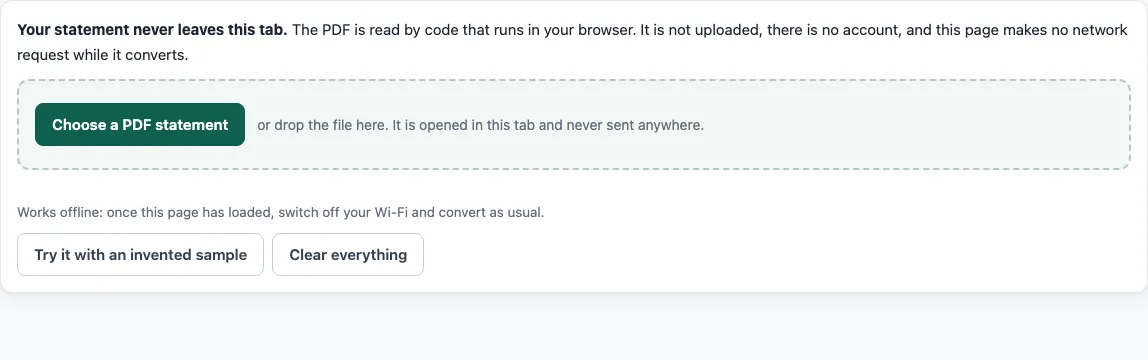
- Click “Choose a PDF statement” or drop the file on the page. Use one file, up to 40 MB and 80 pages.
- Check the account type, the date order and the table on screen. Open the “Options” panel if the dates or amounts look wrong.
- If no table header is recognised, click “Mark the columns by hand”, add dividers between the columns and choose what each one holds.
- Correct any cell that was read wrongly, join a split description to the row above, or remove a row.
- Read the balance result. “Balances add up” means the printed balances agree with the rows. “Balances do not add up: check the marked rows” means one or more rows need a look.
- Click “Download Excel (.xlsx)”. Use “Download CSV” or “Copy for a spreadsheet” if your program needs those formats instead.
Before you use the Excel file for anything that matters, look at the marked rows and the Reconciliation sheet. Compare a few rows with the PDF, especially the first and last rows of each page.
How do I know whether my PDF has a text layer?
A PDF has a text layer when its words can be selected and copied. Open the statement, drag the mouse across one transaction line and paste it into a text editor. Readable text means the converter has something to read.
Statements downloaded from a bank’s website usually have a text layer. A PDF made by photographing a paper statement, or by scanning it, usually does not. In that case the mouse selects nothing, or it selects grey boxes with no words in them, and the pasted text is empty.
What happens with a scanned, photographed or password-protected PDF?
A scanned or photographed statement is a picture of text. The converter says the file has no text and does not guess at the numbers. This version has no OCR, so a picture cannot be turned into rows here. If your bank also offers the same statement as a CSV or OFX download, that file skips the PDF step.
A password-protected PDF opens the same way. The page asks for the password, opens the file in the tab and does not send the password anywhere. Nothing is saved on the site.
What do I do when the columns are not recognised?
The converter looks for a table header such as Date, Description, Amount, Debit, Credit or Balance, and works out the columns from it. When no header is recognised, or the columns come out wrong, the page shows the text of the first page laid out by position. Click between two columns to add a divider, then choose what each column holds: date, description, amount, debit, credit, balance or ignore. The statement is then read again with those columns.
Multi-page statements are read as one table. Page headers and footers, “Page 2 of 3” lines, repeated table headers and “Total” lines are not counted as rows. Where a date is printed once for several transactions, those rows take the date of the row above, and the page says how many rows did.
Frequently asked questions
Is my bank statement uploaded anywhere?
No. The PDF is read inside the browser tab with pdf.js. The page makes no network request while it reads and converts, and it shows the number of requests it made so you can check.
Does it still work with Wi-Fi switched off?
Yes, once the page has loaded. The PDF reader is loaded from this site before the first file is read, so you can switch off Wi-Fi and convert again.
What are the file limits?
One PDF at a time, up to 40 MB and 80 pages.
Does the Excel file check the balances?
Yes. Each printed running balance is compared with the previous balance plus the rows in between. When the statement prints an opening and a closing balance, opening plus transactions is checked against the closing balance too. Rows that fail are shaded in the Transactions sheet and listed in the Reconciliation sheet. A pass shows the numbers are consistent; it does not prove every description and date was read correctly.
Can I convert several statements at once?
No. The converter works on one file at a time.
Is it free?
The converter needs no account and has no page limit within 80 pages and 40 MB. Pro features, such as several files at once, are on a waitlist with pricing at launch.
- Bank statement to Excel - for the general bank account converter page.
- Bank statement to CSV - when your program needs a comma or semicolon file.
- PDF to OFX - when your accounting software imports OFX.
- Credit card statement to Excel - for card statements, where balances are amounts owed.
- How it stays private - how to check that the file never leaves the tab.
- Pro waitlist - for several files at once, reports and saved bank layouts.
- Converter home - to start with a different statement or file type.