Credit Card Statement to Excel
Choose a card statement PDF and download an .xlsx. Balances are read as amounts owed and checked against the new balance. The file stays in this tab.
How to convert a credit card statement to Excel
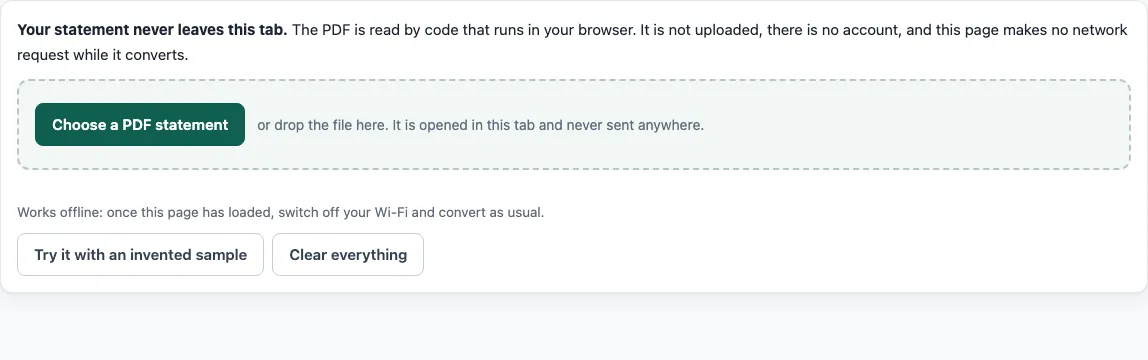
- Click “Choose a PDF statement” or drop the statement PDF onto the page. The file can be up to 40 MB and 80 pages.
- In the “Options” panel, set the account type to credit card. If the amounts look reversed later, come back to this setting.
- Check the date order (month first or day first) and the year. Dates without a year take it from the statement period when the tool can find it.
- Read the balance result: “Balances add up” or “Balances do not add up: check the marked rows”.
- If the columns are wrong, click “Mark the columns by hand”, add dividers between the columns, choose what each column is, and let the page read the statement again.
- Correct any cell that does not match the PDF, then click “Download Excel (.xlsx)”.
Before you use the data, compare the first and last rows with the statement. Check that charges are negative and payments are positive. A result of “Nothing to check against yet” means the statement printed no running balance to compare with, so the rows have not been tested. The Excel file stores amounts as real numbers, so the Transactions sheet can be summed directly, and the Reconciliation sheet records the same check.
Why are charges negative on a credit card statement?
A card balance is the amount you owe, so a charge makes the number go up and a payment makes it go down. The converter writes each charge as money out (a negative amount) and each payment or refund as money in (a positive amount), so the sheet shows what happened to the account.
The arithmetic follows from that. In the sheet, the amounts add up to the change in the balance with the opposite sign, so the new amount owed is the previous amount owed minus the sum of the amounts. Take a previous balance of 400.00, a 25.00 charge and a 100.00 payment. The rows read -25.00 and +100.00, their sum is +75.00, and 400.00 minus 75.00 gives the new balance of 325.00.
How does the balance check work on a card?
The check starts from the amount owed, not from a cash balance. When the statement prints a balance on each row, the tool compares each printed balance with the one before it plus the rows in between. When the statement prints an opening and a closing amount owed, the tool checks opening owed plus charges minus payments against the closing owed. If the statement does not print one of those figures, type it in and the total check runs. Rows that disagree are marked with the printed balance, what the rows add up to, and the difference, so you can see where the numbers part ways.
What about transaction dates, post dates, interest and fees?
Card statements often show a transaction date and a post date. When there are two date columns, the tool uses the first one, normally the transaction date, as the row’s date. Check the first few rows against the PDF. If you want the other one, click “Mark the columns by hand” and choose the column you want as the date. Interest charges and fees are ordinary rows: each has a description and an amount, and each counts in the balance check like any other row. If the statement prints payments as positive numbers, or marks them CR, the signs can come out the wrong way round. Set the account type to credit card and use “reverse all amount signs” in the “Options” panel. If the balances only add up the other way, the tool switches the signs itself and says so.
Frequently asked questions
Is the credit card statement converter free?
The converter on this page is free to use. There is no account, no page limit within 80 pages and 40 MB, and one file at a time. Pro pricing will be announced at launch.
Is my statement uploaded anywhere?
No. The PDF is read inside the browser tab with pdf.js, and the page makes no network request while it reads and converts. The page shows a count of the requests it made, so you can check.
Does it work with Wi-Fi switched off?
After the page has loaded, yes. pdf.js is loaded from this site before the first file is read, so you can switch off Wi-Fi and convert again.
What if my card statement is a scan?
A scanned statement is pictures of pages with no text layer. The tool says so and does not guess. There is no OCR in this version, so the statement needs a text layer, which most statements downloaded from a bank website have.
Does a passing balance check mean every row is right?
No. A pass means the numbers agree with each other. It does not prove that every date and description was read correctly, so compare the rows with the PDF.
Why does my OFX file show a negative balance for my card?
In an OFX file the ledger balance is the closing balance. For a credit card that is the amount owed, so it is written as a negative number.
- Bank statement to Excel - when the statement is from a checking or savings account rather than a card.
- PDF bank statement to Excel - when you are looking for the same kind of conversion with a bank statement PDF.
- Bank statement to CSV - when the program you import into asks for a CSV file.
- PDF to OFX - when you need an OFX file for money software.
- How it stays private - when you want to see how the file stays in your browser.
- Pro waitlist - when you need several files at once, reconciliation reports or saved bank layouts.
- StatementPrivate home - when you want the converter for any statement type.