Convert Bank Statement to Excel
Choose a statement PDF and download an .xlsx with real dates, numeric amounts and a reconciliation sheet. The file is read in this tab and never uploaded.
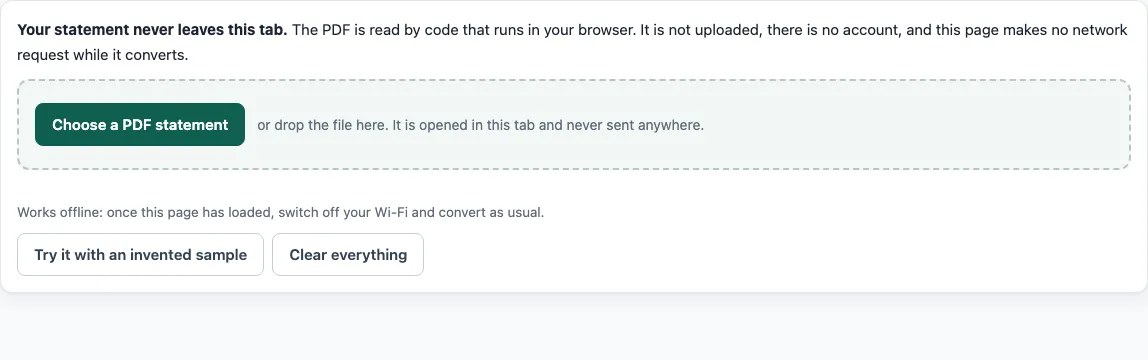
How to convert a bank statement to Excel
- Click “Choose a PDF statement” or drop the statement PDF onto the page. Use one file at a time, up to 40 MB and 80 pages.
- Wait for the table to be read. It appears on the page with a balance result above it.
- If the columns are wrong or no table header was found, use “Mark the columns by hand”. Click between the columns on the first page to add dividers, then choose what each column is.
- Open the “Options” panel if the result looks wrong. You can set the account type, the date order, or “reverse all amount signs”. The tool also switches the signs itself when the balances only add up the other way, and says so.
- Read the balance result: “Balances add up”, or “Balances do not add up: check the marked rows”.
- Click “Download Excel (.xlsx)”.
- Open the file in Excel and compare a few rows with the PDF.
The balance check shows that the numbers agree with each other. It does not show that every description was read correctly. Look at the marked rows first, then spot-check the dates and the first and last rows against the statement.
What is in the Excel file from a bank statement?
The Transactions sheet holds one row for each transaction the tool read. The date column contains real Excel dates, shown as yyyy-mm-dd, so sorting and date filters work on them. Amounts and balances are numbers, not text, so a SUM formula adds them without cleaning first. The header row is frozen and has a filter. Money out is negative and money in is positive, on a card statement as well as a bank account. Rows that fail the balance check are shaded, and you can switch the shading off before you download.
The Reconciliation sheet is the record of the check. It lists the file name, the result, the opening and closing balance, the number of transactions, the net total, whether the total check passed, how many rows were checked, and each place that failed.
Can I paste the statement into Excel without the file?
Yes. “Copy for a spreadsheet” copies the table as tab-separated text, and pasting it into Excel or Google Sheets places each field in its own cell. The paste holds the table only. Excel does not know which rows failed the balance check, so the shading and the Reconciliation sheet come only from the .xlsx download. Use that file when you need the balance record.
What can I do with the sheet in Excel afterwards?
Three things cover most uses. Sum the amount column to get the net change over the statement period, and compare it with the net total on the Reconciliation sheet. Filter the description column to see every row for one payee, then select the visible amounts to read their total. Sort by amount to find the largest payments. Keep the original download untouched, and make your changes in a copy, so you can always go back to the converted rows.
How is this different from Excel’s own PDF import?
Recent versions of Excel can import a table from a PDF by themselves, through Data, then Get Data, then From File, then From PDF. That import places the table in cells. It does not check balances, so a misread amount is not flagged. This tool runs the running-balance check on every row that prints a balance, and marks each row that does not agree. Use Excel’s import when you only need the cells. Use this page when you also need to know whether the numbers add up.
Frequently asked questions
Is the conversion free?
Yes, for the free converter. There is no account, no page limit within 80 pages and 40 MB, and one file at a time. Pro is on a waitlist and has no price yet. The free converter is not affected by Pro.
Is my statement uploaded?
No. The PDF is read inside your browser tab with pdf.js, and the page makes no network request while it reads and converts. The page counts the requests it made since you chose the file, and that count should show 0.
Does it work with Wi-Fi off?
Yes, after the page has loaded. pdf.js is loaded from this site before the first file is read, so switching off Wi-Fi afterwards does not stop the conversion.
What if my statement is a scan?
A scanned statement is pictures of pages with no text layer, so the tool says it cannot read the statement. There is no OCR in this version.
Does a passing balance check mean the Excel file is correct?
No. “Balances add up” shows that the printed balances agree with the rows between them, and that opening plus transactions equals closing when both are printed. It does not prove that every date and description was read correctly, so check the marked rows and a sample of the others.
Why are some rows shaded?
Shaded rows are the ones where a printed balance disagreed with the rows before it. The Reconciliation sheet lists each failed place. You can turn the shading off before you download.
- PDF bank statement to Excel - the same Excel conversion, for when your search is worded around PDF files.
- Bank statement to CSV - when the program you import into needs a CSV with a chosen separator, date format or Balance column.
- PDF to OFX - when banking or accounting software asks for an OFX file.
- Credit card statement to Excel - when the statement is from a card, where balances are amounts owed.
- StatementPrivate home - the converter and the other output formats in one place.
- How it stays private - how to check that no file leaves the browser.
- Pro waitlist - for several files at once, reconciliation reports, QBO files and saved layouts, which the free converter does not do.