Bank Statement to CSV
Choose a statement PDF and download a CSV with the separator, date format and amount columns you pick. The file is read in this tab and never uploaded.
How to convert a bank statement PDF to CSV
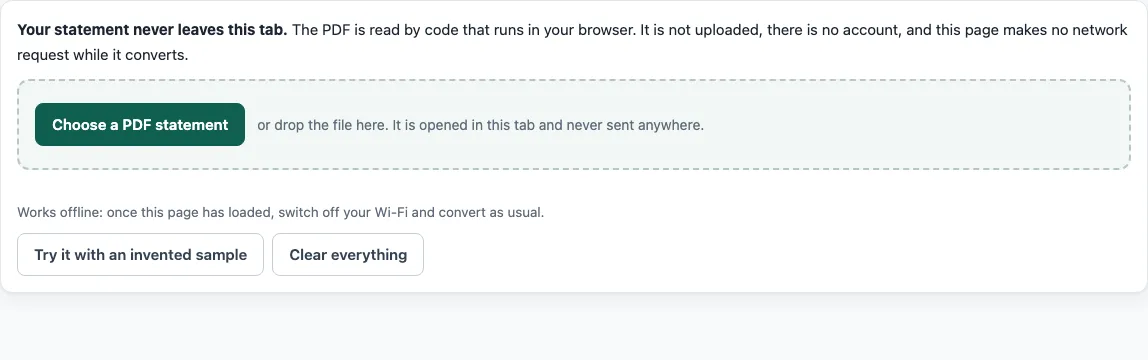
- Open the tool and click “Choose a PDF statement”, or drop the PDF on the page. One file at a time, up to 40 MB and 80 pages. To practise first, click “Try it with an invented sample”.
- If the PDF asks for a password, type it. The password stays in the tab.
- Read the table. Each row should show a date, a description, an amount and a balance. Click any cell to correct it, join a split description to the row above, or remove a row.
- If the columns are wrong, click “Mark the columns by hand”. Click between the columns on the first page to add dividers, then choose what each column is.
- Open “File options” under the download buttons and choose the separator (comma, semicolon or tab), the date format, one Amount column or separate Debit and Credit columns, and whether to add a byte order mark.
- Click “Download CSV”. The file name comes from the PDF’s name with the .csv extension.
Before you use the file, read the balance result. “Balances add up” means the printed balances agree with the rows. It does not prove that every date and description was read correctly, so compare a few rows with the PDF. Each marked row shows the printed balance, what the rows add up to and the difference.
What is inside the CSV file?
The CSV is plain text in UTF-8, with a header row at the top and one row per transaction. Each field is separated by a comma, a semicolon or a tab, and you pick one under “File options”. Dates are written in the format you choose: YYYY-MM-DD, MM/DD/YYYY or DD/MM/YYYY. Amounts have no thousands separators, so 1,234.56 is written without the comma. The Balance column is optional. A Reference column appears only when the statement itself has one. Money out is negative and money in is positive, the same signs the running-balance check uses.
One Amount column or Debit and Credit columns?
One signed Amount column stores money out as a negative number and money in as a positive one. Separate Debit and Credit columns put each kind of money in its own column, which suits an import step that asks for them. On a credit card statement, a charge is money out and a payment or refund is money in, so the Amount column reads the same way as for a bank account. Check the sign on one row you know before you import the whole file. If the program expects the opposite sign, the “Options” panel has a choice to reverse all amount signs. Most spreadsheet and accounting programs have a CSV import step with column mapping, where you say which column is the date, the description and the amount. In Excel, the import route is Data > From Text/CSV.
Why the apostrophe, the byte order mark and the separator?
A description that starts with =, +, - or @ gets a leading apostrophe in the file. A spreadsheet then shows it as text and does not run it as a formula. A description such as “-Coffee shop” therefore begins with an apostrophe in the CSV. The byte order mark is optional. It helps Excel show accented letters correctly in a UTF-8 file. Turn it off if the program you import into shows it as stray characters at the start of the first column name. Choose the separator to match the one your import step splits on.
Frequently asked questions
Is my statement uploaded when I make a CSV?
No. The PDF is read and converted in the browser tab, and the page makes no network request while it does. You can check this in the browser’s Network tab, and the page shows a count of the requests it made.
Why does the check say “Balances do not add up”?
One or more printed balances disagree with the rows before them. The marked rows show the printed balance, what the rows add up to and the difference. Start with the first marked row. A missed row, a split description or a wrongly read amount sign can cause it. Correct the cell in the table and the check runs again.
Which date format should I choose?
Pick the format your import expects. YYYY-MM-DD has no day and month ambiguity, so it is the least ambiguous choice for a file you will import. MM/DD/YYYY and DD/MM/YYYY suit programs that expect those orders.
Does it read scanned statements?
No. A scanned statement is a set of pictures with no text, and the tool says so instead of guessing. There is no OCR in this version.
What is the difference between CSV and OFX?
A CSV is a plain table of rows. OFX is a bank file format that gives each transaction an id and includes a closing balance. OFX needs a full date on every row and a closing balance, and the page says what is missing instead of guessing. Use OFX if your software asks for it.
Can I convert several statements at once?
No. Each conversion handles a single PDF. Batch conversion is on the Pro waitlist, with pricing at launch.
- Bank statement to Excel - when you want real dates and numbers in a workbook with a reconciliation sheet.
- PDF bank statement to Excel - the same statement in an .xlsx file with rows that fail the balance check shaded.
- PDF to OFX - when your accounting software asks for an OFX file.
- Credit card statement to Excel - card statements, where charges are money out.
- How it stays private - how to check that no upload happens.
- Pro waitlist - several files at once, reconciliation reports and saved bank layouts.
- StatementPrivate home - the converter and all output formats.